Set up in five steps
You need an iPhone on iOS 27 or later, an App Store account in a region where Monity is available, an account at a supported bank and the Shortcuts app. iCloud is optional.
Shortcuts passes bank balance-change notification text to the app. There is no bank connection or bank login. You can skip setup and reopen it from the menu.
Choose your banks and enable notifications
Open Set Up from Monity’s menu. Choose your banks and turn on notifications for each bank’s app. Currently supported: MBBank, Techcombank, VPBank.
Set up Shortcuts
Set up one automation for each bank you selected. Use that bank’s link in the app. The link below and the English screenshots use MB Bank as the example.
Tap Add Shortcut in Shortcuts. Open Record MB Bank Expense, expand its options using the marked arrow, switch Automation on and leave Notify off.
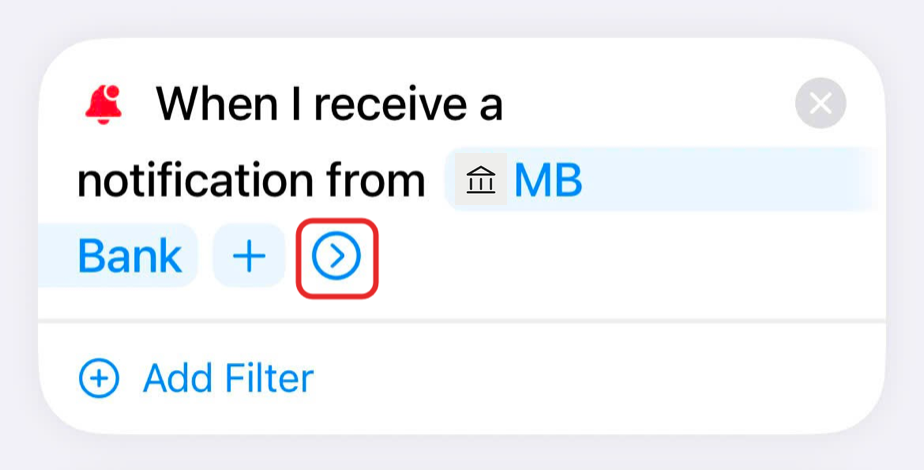
Open the trigger options. 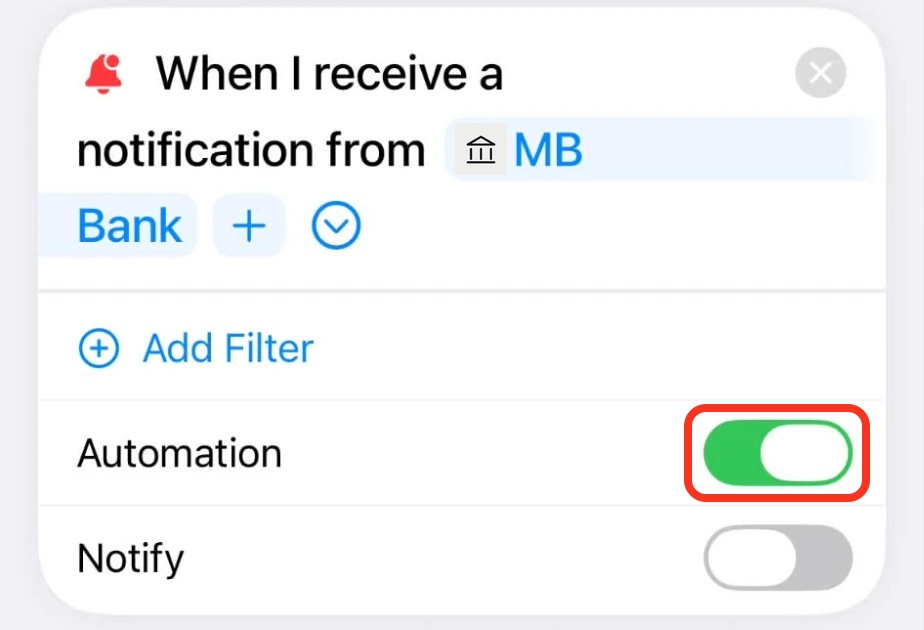
Enable Automation; leave Notify off. Create the automation by hand
Open Automation
In Shortcuts, open Automation in the Library, then tap the add button at the bottom of the screen.
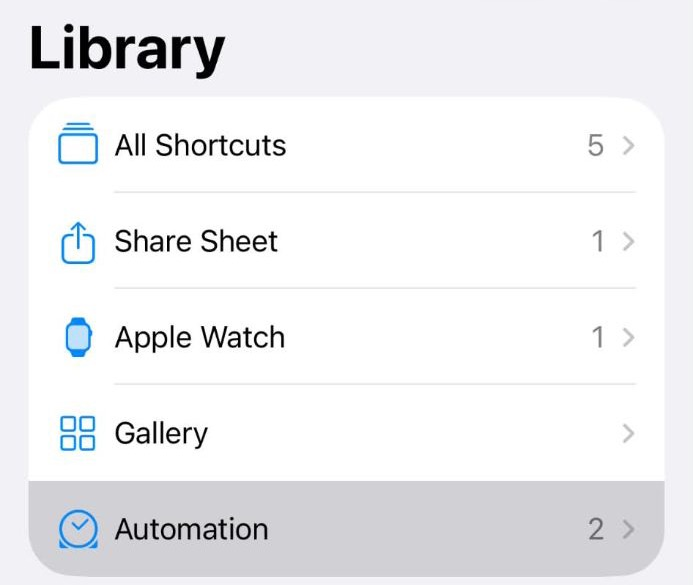
Open Automation Add the notification trigger
Search for Notification. Under Automation, choose Notification.
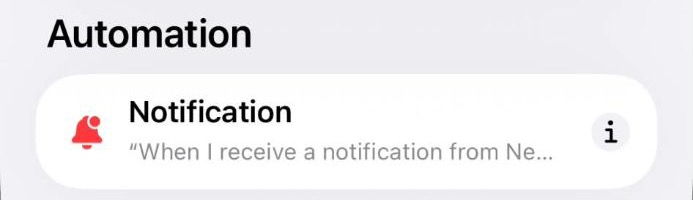
Add the notification trigger Choose your bank
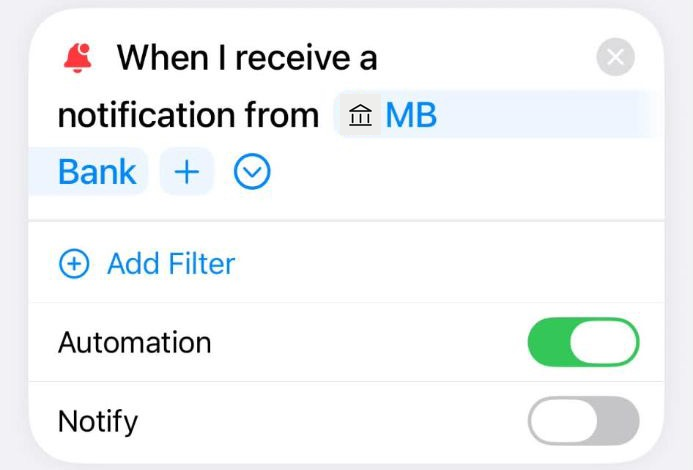
Choose the bank’s app. Switch Automation on and leave Notify off; the screenshot uses MB Bank.
Choose your bank Add the Monity action
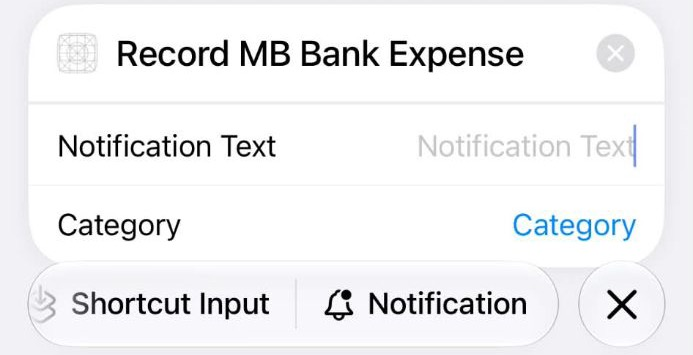
Search for Record and choose Record Bank Expense. Tap Notification Text, then choose Notification above the keyboard. Leave the optional Category selection empty so Monity can ask you each time. The older screenshot shows Record MB Bank Expense.
Add the Monity action Save the automation
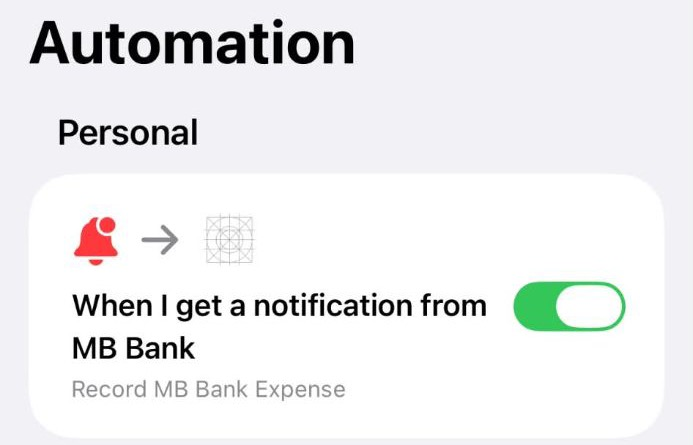
Tap the back arrow at the top left. Check that the automation appears in the list, switched on. Avoid multiple automations for the same bank, which may ask you to choose a Category twice.
Save the automation
Allow the app icon badge
Allow Monity’s badge to count Expenses needing Review. Monity asks only for badge permission, not alerts. This is separate from the bank notifications in step 1.
Choose your favourite Categories
Pick 3–4 Categories you use most. They move to the top of your list, so they come first whenever you choose a Category. Reorder them any time from Categories in the menu.
Finish and check your trial
Tủn shows your trial or free-plan note. The 30-day trial starts at first launch, not when setup finishes. Automatic capture and the Category pop-up need a subscription after the trial. Manual Expenses work on every plan.
Common questions
No Category pop-up?
Check bank notifications and the Shortcuts automation for the right bank. iOS may not show the prompt on a locked phone. With automatic-capture access, Expenses without a Category wait in Review → Uncategorized. Unreadable text waits in Unreadable. On the free plan, new captures are saved locked.
Wrong amount?
Open the Expense to correct its amount and Category. If it is in Review → Unreadable, check the original notification in its Note and enter the correct amount.
Bank notifications turned off?
Enable notifications for your bank’s app in iPhone Settings, and check its balance-change notification settings inside the bank’s app. The notification must arrive for the Shortcuts automation to run.
Unsupported bank?
Monity currently supports MBBank, Techcombank, VPBank. You can still add Manual Expenses on any plan, including for other banks.
Captures locked after the trial?
New free-plan captures are kept outside lists and totals. Subscribe to unlock them. The trial does not unlock captures already locked. Manual Expenses, Review, Budgets for available Categories and up to 5 Categories remain available on the free plan.
Data disappeared after turning off iCloud?
Signing out of iCloud or turning off Monity’s iCloud switch removes Monity’s data from that iPhone. The iCloud copy remains and downloads again when you turn iCloud back on. Anything added while iCloud is off is kept. This does not affect people who have never signed in to iCloud.
Contact
Need a hand? Email us and tell us what went wrong.
monitysupport@gmail.com
Coming soon to the App Store